

¿Recuerdas la primera vez que viste unos auriculares Beats?
Seguro que fue amor a primera vista, ¿verdad?
Su elegante diseño, su impresionante calidad de sonido y su incomparable comodidad hacen de Beats uno de los auriculares más codiciados del mercado.
En este artículo, nos sumergiremos en el mundo de los auriculares Beats y te mostraremos cómo emparejarlos con tus dispositivos Windows, iOS y Android.
Así que, ¡abróchate el cinturón y prepárate para un suave viaje al reino de Beats!
Guía paso a paso para emparejar los auriculares Beats
Empecemos hablando de lo básico.
Para emparejar los auriculares Beats, tienes que activar el Bluetooth a través de tu dispositivo y poner los auriculares en modo de emparejamiento.
Los pasos exactos pueden variar en función del dispositivo que utilices, pero no te preocupes, ¡te tenemos cubierto!
Repasaremos los diferentes dispositivos.
Emparejar los auriculares Beats Studio con un iPhone
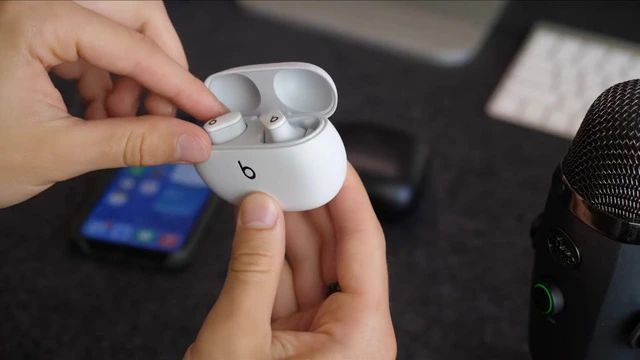
Emparejar los Beats Studio Buds con tu iPhone es pan comido.
Te explicamos cómo:
- Activa el Bluetooth a través de tu iPhone yendo a Ajustes y buscando el conmutador Bluetooth.
- Abre la tapa del estuche de los Beats Buds.
- Mantén pulsado el botón de la parte posterior de la carcasa hasta que el LED parpadee.
- En tu iPhone, busca tus Beats Studio Buds en el menú Bluetooth.
- Toca "Conectar" para emparejar tus auriculares.
Y ya está.
Ya has aprendido a emparejar los auriculares Beats con tu iPhone.
Ahora vamos a emparejarlos con dispositivos Windows y Android.
Emparejar los auriculares Beats con un dispositivo Windows
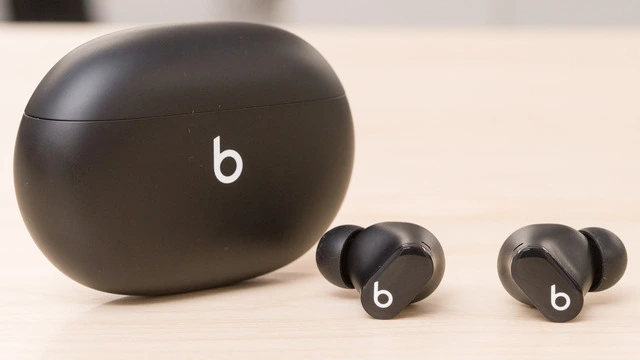
Para conectar los auriculares inalámbricos Beats a tu dispositivo Windows, sigue estos sencillos pasos:
- Activa el Bluetooth a través de tu dispositivo Windows.
Para ello, haz clic en el icono "Centro de actividades" de la barra de tareas y, a continuación, en "Bluetooth". - Pon tus auriculares en modo de emparejamiento.
Mantén pulsado el botón de encendido de los auriculares hasta que la luz empiece a parpadear. - En tu dispositivo Windows, haz clic en la opción "Bluetooth y otros dispositivos" del menú Configuración.
- Haz clic en "Añadir Bluetooth u otro dispositivo".
- Selecciona "Bluetooth" y espera a que tu dispositivo Windows muestre los dispositivos Bluetooth detectables cercanos.
- Haz clic en tus auriculares de la lista de dispositivos disponibles para emparejarlos con tu dispositivo Windows.
Emparejar los auriculares Beats con un dispositivo Android
A continuación te explicamos cómo emparejar los auriculares inalámbricos Beats con tu dispositivo Android:
- Activa el Bluetooth en tu dispositivo Android deslizando el dedo hacia abajo desde la parte superior de la pantalla para acceder al menú de Ajustes Rápidos.
A continuación, toca el icono "Bluetooth" para activarlo. - Pon tus auriculares Beats en modo de emparejamiento manteniendo pulsado el botón de encendido hasta que la luz LED empiece a parpadear.
- En tu dispositivo Android, ve a Ajustes > Dispositivos conectados > Emparejar nuevo dispositivo.
- Espera a que tu dispositivo Android encuentre los auriculares Beats y, a continuación, púlsalos en la lista de dispositivos Bluetooth disponibles.
- Sigue las instrucciones que aparezcan en pantalla para completar el proceso de emparejamiento.
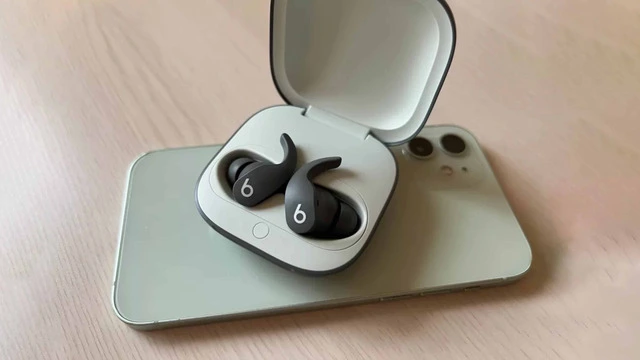
Congratulations! You now know how to pair Beats earbuds with your Windows, iOS, and Android devices. Remember, if you ever run into any issues or need more information on connecting your earbuds, you can always refer to this article for detailed instructions.
Taking Care of Your Beats Earbuds
Now that you've mastered the art of pairing your Beats earbuds with various devices, it's important to take care of them. Check out this article on the best way to clean your earbuds to ensure they stay in tip-top shape and provide you with the best audio experience possible.
Exploring Other Beats Headphones Options
If you're looking to expand your collection of Beats headphones or are simply curious about other models, we recommend checking out this article on the best Beats headphones available in the market.
Finding the Perfect True Wireless Earbuds for You
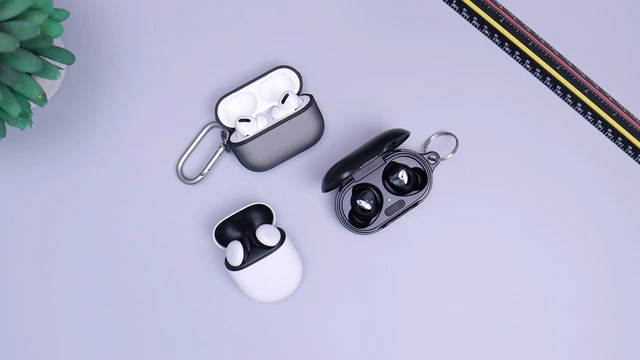
If you're interested in exploring more true wireless earbud options beyond Beats, we've got you covered. For those on a budget, you can find a list of the best true wireless earbuds under $50 that still deliver great sound and comfort. If you're looking for the best overall true wireless earbuds, regardless of price, check out our top picks here.
Q&A: Common Questions about Beats Earbuds
How do you put Beats Buds in pairing mode?
To put your Beats Buds in pairing mode, press and hold the power button on the earbuds until the LED light starts flashing. This usually takes a few seconds. Once the LED light is flashing, your Beats Buds are in pairing mode and ready to be connected to your device.
Why are my Beats not connecting?
If your Beats earbuds are not connecting to your device, there could be several reasons. Here are some troubleshooting tips:
Ensure that Bluetooth is turned on for your device.
Make sure your Beats earbuds are charged and in pairing mode.
Move your Beats earbuds closer to your device to ensure a strong Bluetooth connection.
Try restarting your device and putting your Beats earbuds back into pairing mode.
If all else fails, consider resetting your Beats earbuds (see the next question for instructions).
How do you force Beats to connect?
To force your Beats earbuds to connect to your device, follow these steps:
- Turn off any other Bluetooth devices nearby to avoid interference.
- Put your Beats earbuds in pairing mode by pressing and holding the power button until the LED light flashes.
- On your device, go to the Bluetooth settings menu and make sure Bluetooth is enabled.
- Look for your Beats earbuds in the list of available Bluetooth devices, and tap on them to initiate the connection. If your device asks for confirmation, accept the pairing request.
- If your Beats earbuds still don't connect, you may need to reset them and try again (see the next question for resetting instructions).
Q: How do I reset my Beats earbuds?
A: Resetting your Beats earbuds can help resolve connection issues. To reset your Beats earbuds, follow these steps:
- Place both earbuds in the charging case, and make sure they are fully seated.
- Close the case lid for a few seconds, then reopen it.
- On the back of the charging case, press and hold the pairing button for about 10 seconds until the LED light on the case starts flashing.
- Release the button and wait for the LED light to stop flashing, indicating that the reset is complete.
Now that your Beats earbuds have been reset, you can try connecting them to your device again by following the pairing steps outlined earlier in this article for your specific device (Windows, iOS, or Android).
Remember, if you continue to experience issues with your Beats earbuds, you can always refer to the Beats support website for more detailed troubleshooting advice or contact Beats customer support for assistance.
In Conclusion
Knowing how to pair Beats earbuds with your devices is essential for enjoying your music, podcasts, or audiobooks without any interruptions. By following the step-by-step instructions we've provided for Windows, iOS, and Android devices, you'll be able to easily connect your Beats wireless headphones and immerse yourself in the fantastic audio experience they offer.
Don't forget to take care of your Beats earbuds by cleaning them regularly and storing them in their protective case when not in use. And if you're ever in the market for new headphones or earbuds, be sure to explore the other Beats models and true wireless earbud options we've recommended.
So, go ahead, put on your Beats earbuds, and lose yourself in the world of music, podcasts, or audiobooks. Enjoy!