

Erinnern Sie sich noch an das erste Mal, als Sie ein Paar Beats-Kopfhörer sahen?
Wir wetten, es war Liebe auf den ersten Blick, oder?
Das schlanke Design, die beeindruckende Klangqualität und der unvergleichliche Komfort machen Beats zu einem der begehrtesten Kopfhörer auf dem Markt.
In diesem Artikel tauchen wir in die Welt der Beats-Kopfhörer ein und zeigen Ihnen, wie Sie sie mit Ihren Windows-, iOS- und Android-Geräten koppeln können.
Also, schnallen Sie sich an und machen Sie sich bereit für eine sanfte Fahrt in das Reich von Beats!
Eine Schritt-für-Schritt-Anleitung zum Koppeln von Beats-Kopfhörern
Lassen Sie uns zunächst die Grundlagen besprechen.
Um Beats-Kopfhörer zu koppeln, müssen Sie Bluetooth über Ihr Gerät einschalten und die Kopfhörer in den Kopplungsmodus versetzen.
Die genauen Schritte können je nach Gerät, das Sie verwenden, variieren, aber keine Sorge - wir haben alles für Sie vorbereitet!
Wir gehen alle verschiedenen Geräte durch.
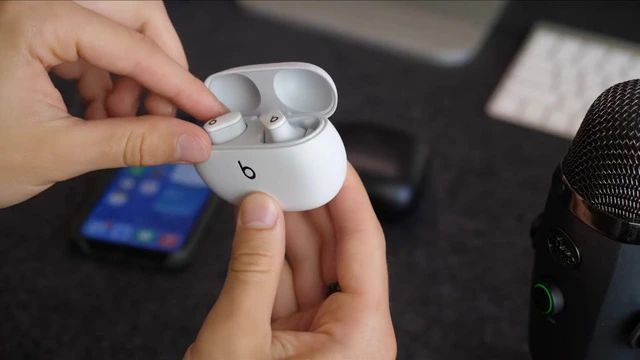
Beats Studio Buds mit einem iPhone koppeln
Das Koppeln der Beats Studio Buds mit Ihrem iPhone ist ein Kinderspiel.
So geht's:
- Schalten Sie Bluetooth über Ihr iPhone ein, indem Sie in den Einstellungen nach dem Schalter für Bluetooth suchen.
- Öffnen Sie den Deckel des Beats Buds Gehäuses.
- Halten Sie die Taste auf der Rückseite des Gehäuses gedrückt, bis die LED blinkt.
- Suchen Sie auf Ihrem iPhone im Bluetooth-Menü nach Ihren Beats Studio Buds.
- Tippen Sie auf "Verbinden", um Ihre Ohrhörer zu koppeln.
Und das war's!
Sie haben erfolgreich gelernt, wie Sie die Beats-Kopfhörer mit Ihrem iPhone koppeln können.
Jetzt können Sie sie mit Windows- und Android-Geräten koppeln.
Beats Earbuds mit einem Windows-Gerät koppeln
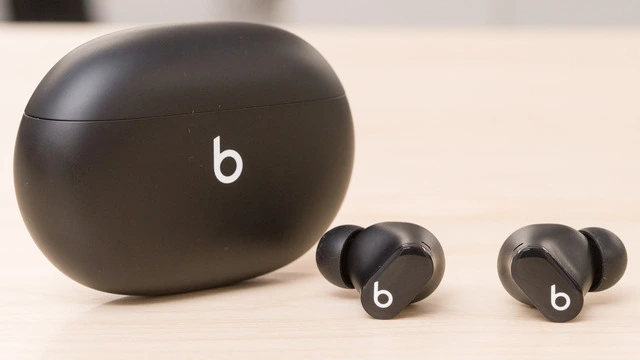
Um die kabellosen Kopfhörer von Beats mit Ihrem Windows-Gerät zu verbinden, folgen Sie diesen einfachen Schritten:
- Schalten Sie Bluetooth über Ihr Windows-Gerät ein.
Klicken Sie dazu auf das Symbol "Action Center" in der Taskleiste und dann auf "Bluetooth". - Versetzen Sie Ihre Ohrhörer in den Pairing-Modus.
Halten Sie einfach die Einschalttaste an Ihren Ohrhörern gedrückt, bis das Licht zu blinken beginnt. - Klicken Sie auf Ihrem Windows-Gerät im Menü Einstellungen auf die Option "Bluetooth & andere Geräte".
- Klicken Sie auf "Bluetooth oder anderes Gerät hinzufügen".
- Wählen Sie "Bluetooth" und warten Sie, bis Ihr Windows-Gerät in der Nähe befindliche Bluetooth-Geräte anzeigt.
- Klicken Sie auf Ihre Ohrhörer in der Liste der verfügbaren Geräte, um sie mit Ihrem Windows-Gerät zu koppeln.
Beats Earbuds mit einem Android-Gerät koppeln
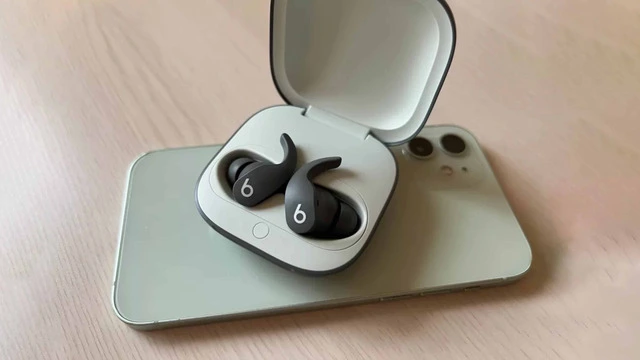
Hier erfahren Sie, wie Sie die kabellosen Beats-Kopfhörer mit Ihrem Android-Gerät verbinden können:
- Schalten Sie Bluetooth auf Ihrem Android-Gerät ein, indem Sie vom oberen Bildschirmrand nach unten wischen, um das Menü Schnelleinstellungen aufzurufen.
Tippen Sie dann auf das Symbol "Bluetooth", um es zu aktivieren. - Versetzen Sie Ihre Beats-Kopfhörer in den Pairing-Modus, indem Sie die Power-Taste gedrückt halten, bis die LED-Leuchte zu blinken beginnt.
- Gehen Sie auf Ihrem Android-Gerät zu Einstellungen > Verbundene Geräte > Neues Gerät koppeln.
- Warten Sie, bis Ihr Android-Gerät die Beats-Kopfhörer gefunden hat, und tippen Sie dann auf sie in der Liste der verfügbaren Bluetooth-Geräte.
- Folgen Sie den Anweisungen auf dem Bildschirm, um den Kopplungsvorgang abzuschließen.
Congratulations! You now know how to pair Beats earbuds with your Windows, iOS, and Android devices. Remember, if you ever run into any issues or need more information on connecting your earbuds, you can always refer to this article for detailed instructions.
Taking Care of Your Beats Earbuds
Now that you've mastered the art of pairing your Beats earbuds with various devices, it's important to take care of them. Check out this article on the best way to clean your earbuds to ensure they stay in tip-top shape and provide you with the best audio experience possible.
Exploring Other Beats Headphones Options
If you're looking to expand your collection of Beats headphones or are simply curious about other models, we recommend checking out this article on the best Beats headphones available in the market.
Finding the Perfect True Wireless Earbuds for You
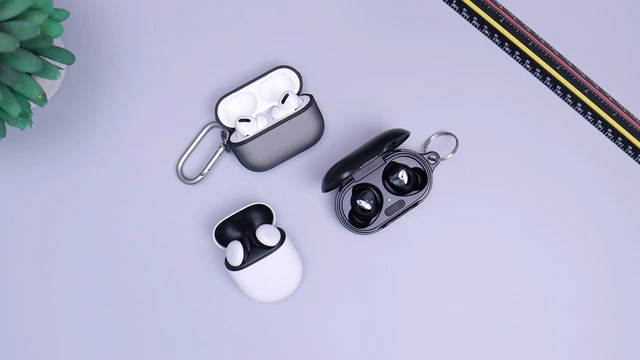
If you're interested in exploring more true wireless earbud options beyond Beats, we've got you covered. For those on a budget, you can find a list of the best true wireless earbuds under $50 that still deliver great sound and comfort. If you're looking for the best overall true wireless earbuds, regardless of price, check out our top picks here.
Q&A: Common Questions about Beats Earbuds
How do you put Beats Buds in pairing mode?
To put your Beats Buds in pairing mode, press and hold the power button on the earbuds until the LED light starts flashing. This usually takes a few seconds. Once the LED light is flashing, your Beats Buds are in pairing mode and ready to be connected to your device.
Why are my Beats not connecting?
If your Beats earbuds are not connecting to your device, there could be several reasons. Here are some troubleshooting tips:
Ensure that Bluetooth is turned on for your device.
Make sure your Beats earbuds are charged and in pairing mode.
Move your Beats earbuds closer to your device to ensure a strong Bluetooth connection.
Try restarting your device and putting your Beats earbuds back into pairing mode.
If all else fails, consider resetting your Beats earbuds (see the next question for instructions).
How do you force Beats to connect?
To force your Beats earbuds to connect to your device, follow these steps:
- Turn off any other Bluetooth devices nearby to avoid interference.
- Put your Beats earbuds in pairing mode by pressing and holding the power button until the LED light flashes.
- On your device, go to the Bluetooth settings menu and make sure Bluetooth is enabled.
- Look for your Beats earbuds in the list of available Bluetooth devices, and tap on them to initiate the connection. If your device asks for confirmation, accept the pairing request.
- If your Beats earbuds still don't connect, you may need to reset them and try again (see the next question for resetting instructions).
Q: How do I reset my Beats earbuds?
A: Resetting your Beats earbuds can help resolve connection issues. To reset your Beats earbuds, follow these steps:
- Place both earbuds in the charging case, and make sure they are fully seated.
- Close the case lid for a few seconds, then reopen it.
- On the back of the charging case, press and hold the pairing button for about 10 seconds until the LED light on the case starts flashing.
- Release the button and wait for the LED light to stop flashing, indicating that the reset is complete.
Now that your Beats earbuds have been reset, you can try connecting them to your device again by following the pairing steps outlined earlier in this article for your specific device (Windows, iOS, or Android).
Remember, if you continue to experience issues with your Beats earbuds, you can always refer to the Beats support website for more detailed troubleshooting advice or contact Beats customer support for assistance.
In Conclusion
Knowing how to pair Beats earbuds with your devices is essential for enjoying your music, podcasts, or audiobooks without any interruptions. By following the step-by-step instructions we've provided for Windows, iOS, and Android devices, you'll be able to easily connect your Beats wireless headphones and immerse yourself in the fantastic audio experience they offer.
Don't forget to take care of your Beats earbuds by cleaning them regularly and storing them in their protective case when not in use. And if you're ever in the market for new headphones or earbuds, be sure to explore the other Beats models and true wireless earbud options we've recommended.
So, go ahead, put on your Beats earbuds, and lose yourself in the world of music, podcasts, or audiobooks. Enjoy!