

Vous souvenez-vous de la première fois où vous avez posé les yeux sur un casque Beats ?
Nous parions qu'il s'agissait d'un véritable coup de foudre, n'est-ce pas ?
Le design élégant, la qualité sonore impressionnante et le confort inégalé font des écouteurs Beats l'un des casques les plus recherchés du marché.
Dans cet article, nous allons plonger dans l'univers des écouteurs Beats et vous montrer comment les associer à vos appareils Windows, iOS et Android.
Alors, attachez votre ceinture et préparez-vous à entrer en douceur dans le monde de Beats !
Guide étape par étape sur la façon de coupler les écouteurs Beats
Commençons par les principes de base.
Pour appairer les écouteurs Beats, vous devez activer le Bluetooth sur votre appareil et mettre les écouteurs en mode d'appairage.
Les étapes exactes peuvent varier en fonction de l'appareil que vous utilisez, mais ne vous inquiétez pas : nous avons tout ce qu'il vous faut !
Nous allons passer en revue les différents appareils.
Associer les écouteurs Beats Studio Buds à un iPhone
Associer les Beats Studio Buds à votre iPhone est un jeu d'enfant.
Voici comment procéder :
- Activez le Bluetooth sur votre iPhone en allant dans Réglages et en cherchant le bouton Bluetooth.
- Ouvrez le couvercle de l'étui des Beats Buds.
- Maintenez le bouton au dos de l'étui jusqu'à ce que le voyant clignote.
- Sur votre iPhone, recherchez vos Beats Studio Buds dans le menu Bluetooth.
- Appuyez sur "Connecter" pour coupler vos écouteurs.
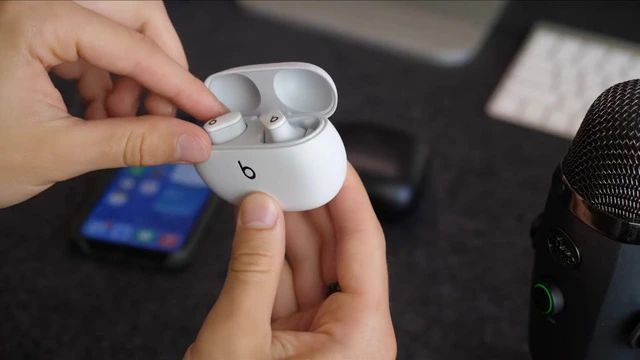
Et le tour est joué !
Vous avez appris à coupler les écouteurs Beats avec votre iPhone.
Passons maintenant à l'appairage avec les appareils Windows et Android.
Jumelage des écouteurs Beats avec un appareil Windows
Pour connecter un casque sans fil Beats à votre appareil Windows, suivez ces étapes simples :
- Activez le Bluetooth sur votre appareil Windows.
Pour ce faire, cliquez sur l'icône "Action Center" dans la barre des tâches, puis sur "Bluetooth". - Mettez vos écouteurs en mode d'appairage.
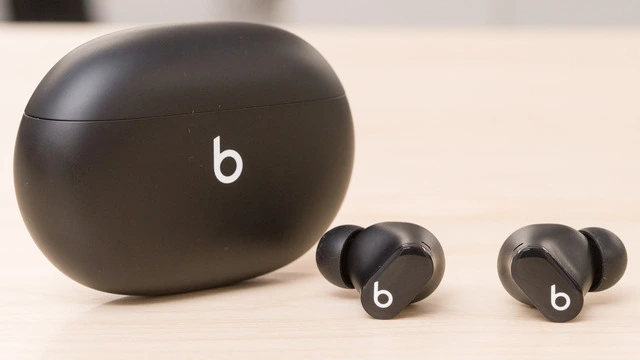
Il vous suffit d'appuyer sur le bouton d'alimentation de vos écouteurs et de le maintenir enfoncé jusqu'à ce que la lumière commence à clignoter. - Sur votre appareil Windows, cliquez sur l'option "Bluetooth et autres appareils" dans le menu Paramètres.
- Cliquez sur "Ajouter un appareil Bluetooth ou autre".
- Sélectionnez "Bluetooth" et attendez que votre appareil Windows affiche les périphériques Bluetooth détectables à proximité.
- Cliquez sur vos écouteurs dans la liste des appareils disponibles pour les coupler avec votre appareil Windows.
Jumelage des écouteurs Beats avec un appareil Android
Voici comment associer les écouteurs sans fil Beats à votre appareil Android :
- Activez le Bluetooth sur votre appareil Android en balayant vers le bas depuis le haut de l'écran pour accéder au menu Paramètres rapides.
Appuyez ensuite sur l'icône "Bluetooth" pour l'activer. - Mettez vos écouteurs Beats en mode d'appairage en appuyant sur le bouton d'alimentation et en le maintenant enfoncé jusqu'à ce que la lumière LED commence à clignoter.
- Sur votre appareil Android, accédez à Paramètres > Appareils connectés > Associer un nouvel appareil.
- Attendez que votre appareil Android trouve les écouteurs Beats, puis appuyez sur eux dans la liste des périphériques Bluetooth disponibles.
- Suivez les instructions qui s'affichent à l'écran pour terminer le processus d'appairage.
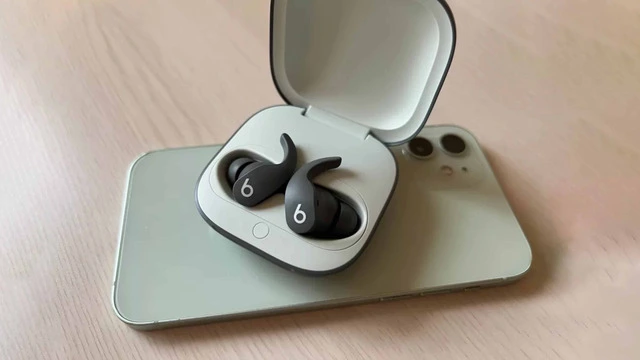
Congratulations! You now know how to pair Beats earbuds with your Windows, iOS, and Android devices. Remember, if you ever run into any issues or need more information on connecting your earbuds, you can always refer to this article for detailed instructions.
Taking Care of Your Beats Earbuds
Now that you've mastered the art of pairing your Beats earbuds with various devices, it's important to take care of them. Check out this article on the best way to clean your earbuds to ensure they stay in tip-top shape and provide you with the best audio experience possible.
Exploring Other Beats Headphones Options
If you're looking to expand your collection of Beats headphones or are simply curious about other models, we recommend checking out this article on the best Beats headphones available in the market.
Finding the Perfect True Wireless Earbuds for You
If you're interested in exploring more true wireless earbud options beyond Beats, we've got you covered. For those on a budget, you can find a list of the best true wireless earbuds under $50 that still deliver great sound and comfort. If you're looking for the best overall true wireless earbuds, regardless of price, check out our top picks here.
Q&A: Common Questions about Beats Earbuds
How do you put Beats Buds in pairing mode?
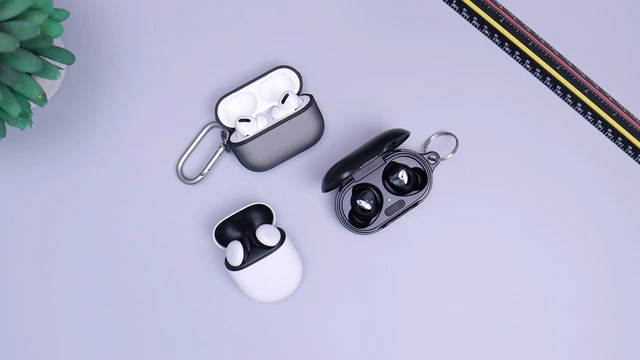
To put your Beats Buds in pairing mode, press and hold the power button on the earbuds until the LED light starts flashing. This usually takes a few seconds. Once the LED light is flashing, your Beats Buds are in pairing mode and ready to be connected to your device.
Why are my Beats not connecting?
If your Beats earbuds are not connecting to your device, there could be several reasons. Here are some troubleshooting tips:
Ensure that Bluetooth is turned on for your device.
Make sure your Beats earbuds are charged and in pairing mode.
Move your Beats earbuds closer to your device to ensure a strong Bluetooth connection.
Try restarting your device and putting your Beats earbuds back into pairing mode.
If all else fails, consider resetting your Beats earbuds (see the next question for instructions).
How do you force Beats to connect?
To force your Beats earbuds to connect to your device, follow these steps:
- Turn off any other Bluetooth devices nearby to avoid interference.
- Put your Beats earbuds in pairing mode by pressing and holding the power button until the LED light flashes.
- On your device, go to the Bluetooth settings menu and make sure Bluetooth is enabled.
- Look for your Beats earbuds in the list of available Bluetooth devices, and tap on them to initiate the connection. If your device asks for confirmation, accept the pairing request.
- If your Beats earbuds still don't connect, you may need to reset them and try again (see the next question for resetting instructions).
Q: How do I reset my Beats earbuds?
A: Resetting your Beats earbuds can help resolve connection issues. To reset your Beats earbuds, follow these steps:
- Place both earbuds in the charging case, and make sure they are fully seated.
- Close the case lid for a few seconds, then reopen it.
- On the back of the charging case, press and hold the pairing button for about 10 seconds until the LED light on the case starts flashing.
- Release the button and wait for the LED light to stop flashing, indicating that the reset is complete.
Now that your Beats earbuds have been reset, you can try connecting them to your device again by following the pairing steps outlined earlier in this article for your specific device (Windows, iOS, or Android).
Remember, if you continue to experience issues with your Beats earbuds, you can always refer to the Beats support website for more detailed troubleshooting advice or contact Beats customer support for assistance.
In Conclusion
Knowing how to pair Beats earbuds with your devices is essential for enjoying your music, podcasts, or audiobooks without any interruptions. By following the step-by-step instructions we've provided for Windows, iOS, and Android devices, you'll be able to easily connect your Beats wireless headphones and immerse yourself in the fantastic audio experience they offer.
Don't forget to take care of your Beats earbuds by cleaning them regularly and storing them in their protective case when not in use. And if you're ever in the market for new headphones or earbuds, be sure to explore the other Beats models and true wireless earbud options we've recommended.
So, go ahead, put on your Beats earbuds, and lose yourself in the world of music, podcasts, or audiobooks. Enjoy!